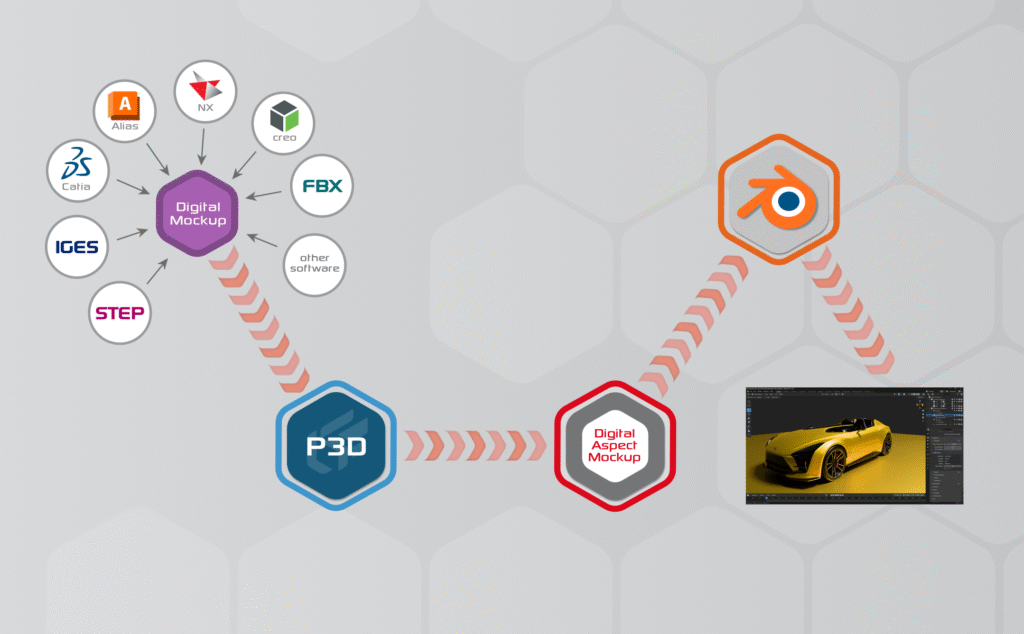
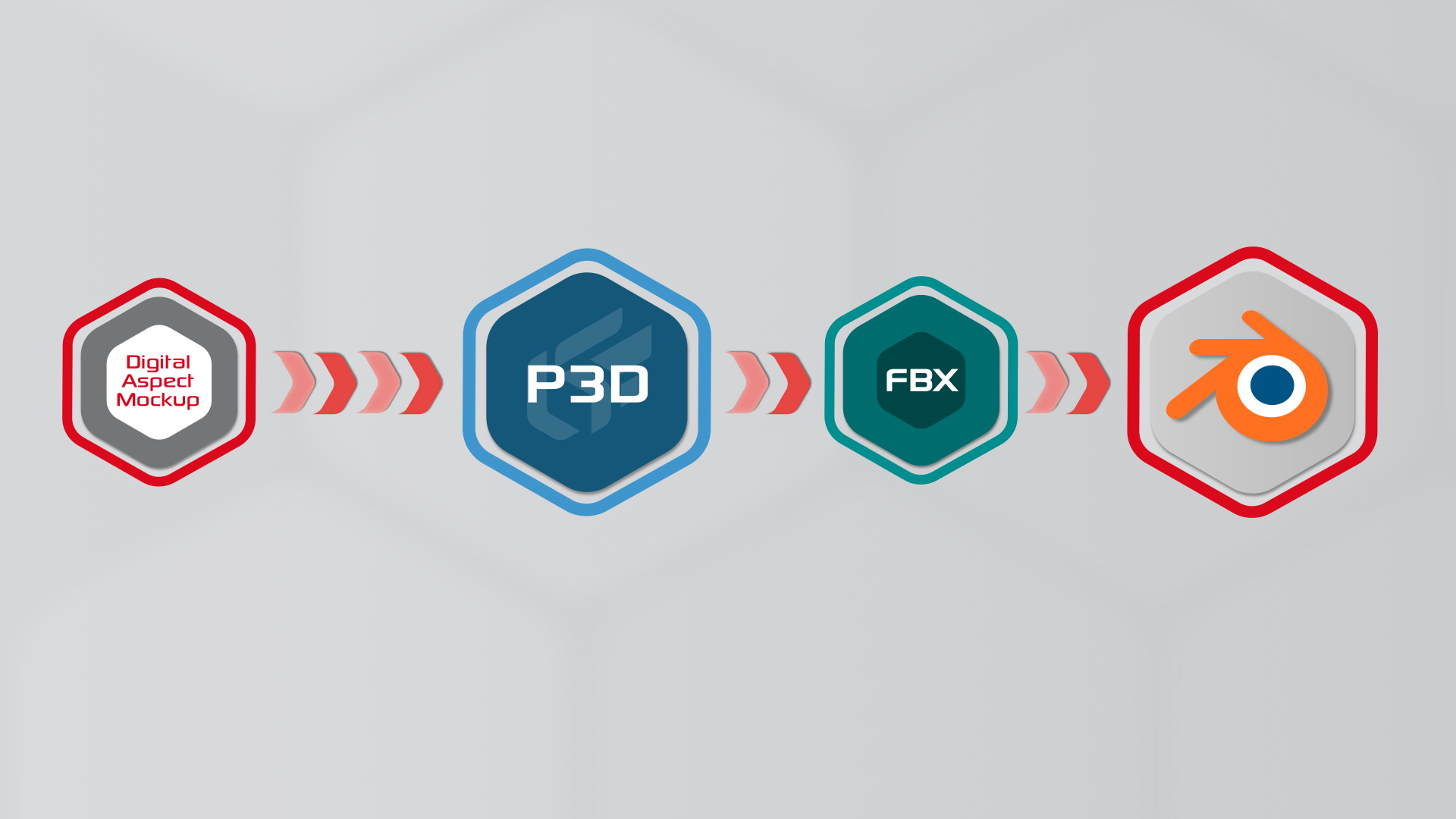
From CAD, preparation of the DAM in Patchwork 3D, then import to Blender, work on the scene, and render!
From CAD to a clean Blender-ready DAM
Tools to start your own process
Getting started
You can get started trying the DAM workflow with Patchwork 3D Community and a sample database, Robotaxi. Of course, you can also import your own 3D models into Patchwork 3D.
Setup for Patchwork 3D
For Windows x64:
Requires a free user account
Sample database: the Robotaxi
Requires a free user account
After setup, you get 15 days of a Premium license trial. Then you can keep the Community edition free forever or choose to upgrade.
The tutorials to begin
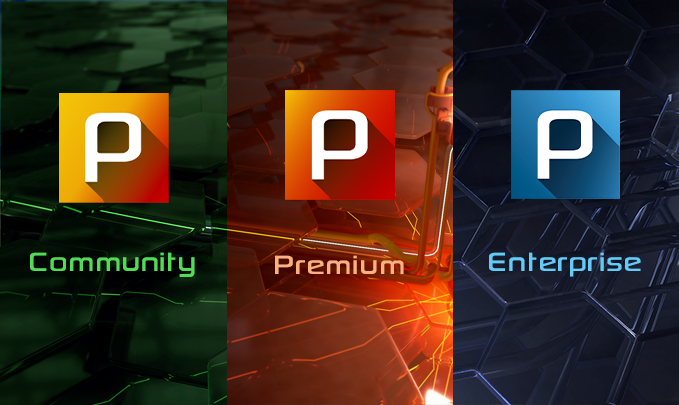
The Patchwork 3D that suits you
Patchwork 3D is available in 3 editions:
- Community to evaluate the main features to prepare a DAM, self-training, and personal use. Free
- Premium to work on CAD models and render professional images and videos of configured products
- Enterprise to integrate into industrial processes and power product ranges in all marketing experiences, like VR, AR, web, and mobile
Empower Blender with a configurable 3D model
FBX Export/Import
Patchwork 3D provides an FBX file export, which can then be imported into Blender.
Unfortunately, the FBX format lacks an equivalent of the DAM features, so the model imported into Blender is only a digital mockup, with the surfaces and converted materials, not a full DAM model with configuration.
Please note that the initial rendering might be very different from Patchwork 3D’s one.
You can then work the scene and model, and tune or replace the materials as you like.
For a better conversion, we recommend using our P3D to Blender add-on below.
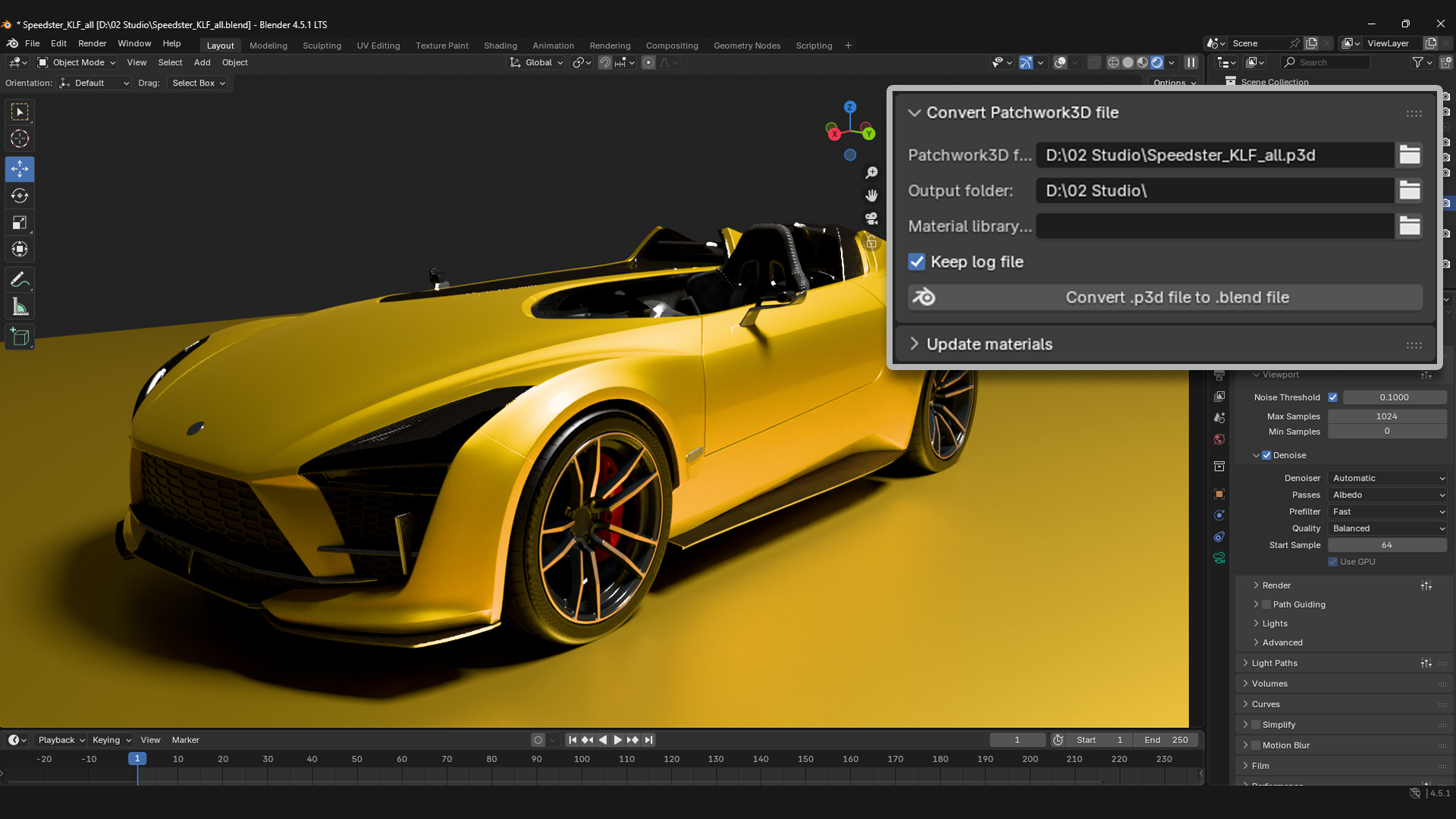
P3D to Blender add-on
The P3D to Blender add-on:
- Converts the DAM from a Patchwork 3D file to be able to use it in Blender.
- Updates materials in the open Blender file with an external
.blendfile containing matching named materials.
The license allows you to use the product for evaluation purposes.
For Windows x64:
Requires a free user account
Please follow the instructions to install and use.
Demo
This version imports the configured product as saved in Patchwork 3D.
The Robotaxi is then ready to be refined in Blender for rendering and animations.
The variants are not imported at this moment. More is coming, see below.
Easy import of a Robotaxi prepared in Patchwork 3D